
Creating a gaming board
With Deskboard, you can turn a boring Games folder into a launcher worth looking at, complete with animated wallpapers, background music, custom icons, and RGB glow.
The best part? Deskboard gets out of the way as soon as you launch a game.
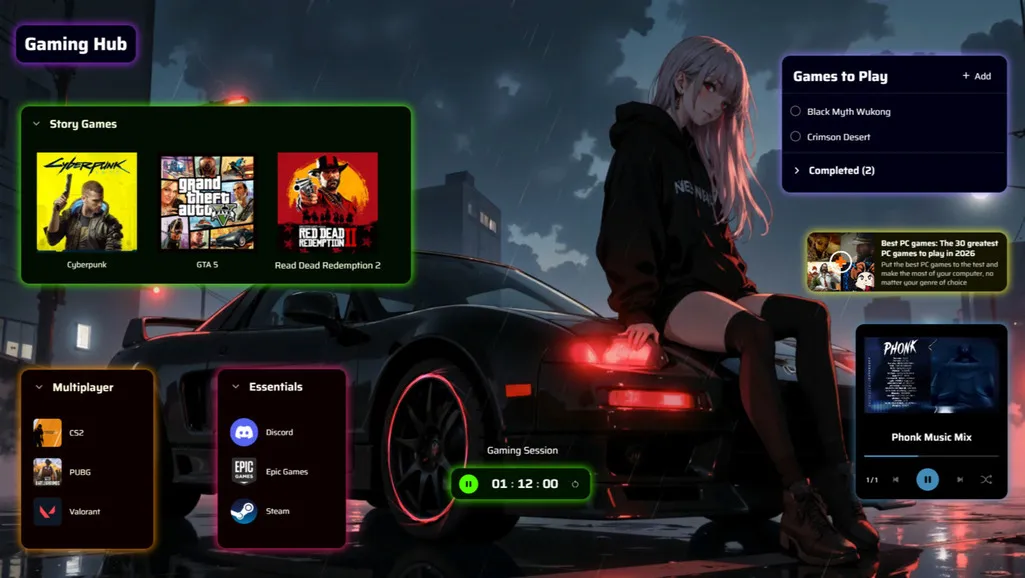
Start with a folder of shortcuts
Section titled “Start with a folder of shortcuts”If you don’t already have one, create a folder to store your game shortcuts.
You can add shortcuts for games installed through Steam, Epic Games, or any other launcher.
1. Open the folder as a board
Section titled “1. Open the folder as a board”In Deskboard, click Create Board and choose one of the following:
- Existing Folder if you’ve already created your shortcuts folder
- New Folder to let Deskboard create one for you
While you’re here, enable Create Desktop Shortcut so you can access your gaming board directly from your desktop.
You can also choose a custom icon for the shortcut. Any image format is supported.
For more details, see Create and delete boards.
2. Personalise your board
Section titled “2. Personalise your board”Your game shortcuts should now appear on the board. From here, you can start making it your own.
To customise your board’s appearance and layout, make sure you’re in edit mode.
3. Switch to the Neon theme
Section titled “3. Switch to the Neon theme”While this is a matter of personal preference, the Neon theme is perfect for an RGB gaming setup. It gives your game cards and widgets a colourful glow.
Prefer something different? You can also try other themes, such as Glass.
See Themes.
4. Give it a cool wallpaper
Section titled “4. Give it a cool wallpaper”Choose a wallpaper that matches your setup. You can upload your own image, pick one from Deskboard’s built-in collection, or search Pixabay using the search bar at the top.
Want something more dynamic? Deskboard also supports animated wallpapers, including videos you upload yourself.
See Wallpapers.
5. Customise your game icons
Section titled “5. Customise your game icons”Not a fan of the default game icons? This is where you can make your board stand out.
Deskboard automatically displays the available game icons, but you’re free to replace them with your own artwork, game covers, or whatever fits your setup.
6. Get Deskboard out of the way when a game starts
Section titled “6. Get Deskboard out of the way when a game starts”You probably don’t want Deskboard running behind your game.
To fix that, select your game shortcuts in edit mode and enable Close Deskboard on Open.
When you launch a game from the board, Deskboard closes once the game has actually started. While the game loads, you’ll see a loading animation, and the board remains usable.
See Opening files.
7. Add the things a launcher doesn’t have
Section titled “7. Add the things a launcher doesn’t have”Your games are files and shortcuts. Everything else is up to you.
Deskboard widgets let you add useful extras to your gaming setup:
| Widget | Why add it? |
|---|---|
| Music | Set the mood before you start playing |
| Tasks | Keep track of games you want to try |
| Timer | Remind yourself when it’s time for a break |
And that’s just the beginning. There are plenty of other widgets to experiment with.
Add them using the round + button in the bottom corner. See Adding widgets.
8. Organise games into categories
Section titled “8. Organise games into categories”Have a large library? You can organise your games into categories to make everything easier to find.
Create folders inside your board and drag your game shortcuts into them.
You could organise games by genre, single-player and multiplayer, favourites, or whatever system works best for you.
9. You’re all set!
Section titled “9. You’re all set!”That’s it! You’ve now got a personalised gaming launcher, complete with your own theme, wallpaper, icons, and widgets.
Open it anytime using the desktop shortcut and enjoy your new gaming setup.